
Visitor-facing accessibility tools

Connect Your Accessibility Work With the People Using Your Website

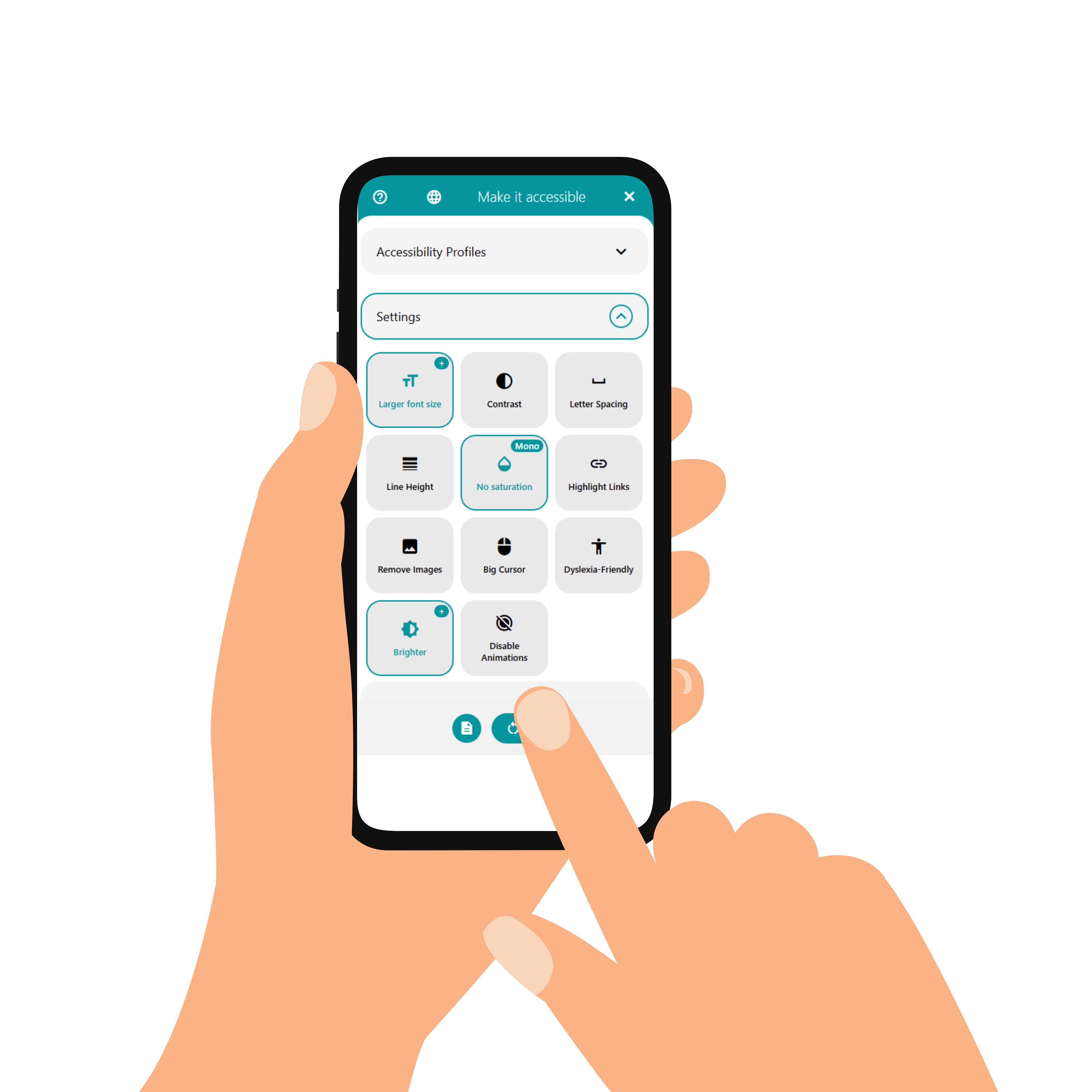
SimplifyAccess adds a configurable accessibility interface to your website. It gives visitors tools to adjust presentation, support reading and navigation, and access prepared content from the SimplifyAccess platform.

Your team manages the experience centrally. The widget delivers the selected tools and approved content directly on each connected website.

Hand holding a phone displaying the SimplifyAccess accessibility tools interface

From platform to website

The Bridge Between Accessibility Management and Visitor Support

SimplifyAccess connects the work completed by your team with the accessibility options available to visitors. Configuration and content remain managed in the platform, while the widget makes them available on the website.

  1. Prepare

    Manage the Experience in the Platform

    Configure visitor tools, review prepared content, and maintain website-specific settings from the SimplifyAccess platform.

  2. Deliver

    Connect the Platform Through the Widget

    The embedded interface brings the selected tools and available content options into the relevant customer website.

  3. Support

    Let Visitors Choose What Helps Them

    Visitors can adjust presentation, use reading and navigation support, and access prepared alternative content where available.

More Than Visual Adjustments

The widget can also provide access to content prepared through SimplifyAccess workflows. This connects content work completed by your team with the people who need it on the website.

  • Simplified content
  • Plain-language versions
  • Media transcriptions
  • Translations where available

Tools for different visitor needs

Let Visitors Adapt the Website Experience

Different people encounter different barriers. SimplifyAccess provides configurable tools that can support visual presentation, reading, understanding, navigation, and interaction.

Your organization decides which options are available on each website. Visitors can then choose and combine the tools that are useful to them.

Flexible rather than prescriptive

The tools do not assume that every visitor has the same needs. Individual settings can be adjusted, combined, or reset at any time.

Adjust visual presentation

Make Content Easier to See and Follow

Visitors can adapt the visual presentation without changing the website for everyone else.

  • Text size and spacing
  • Contrast and brightness
  • Colour and saturation controls
  • Animation and image controls

Support reading and understanding

Provide More Ways to Access the Content

Reading tools and prepared content options can help visitors access information in a form that better supports their preferences.

  • Read-aloud support
  • Magnification tools
  • Reduced-distraction presentation
  • Prepared alternative content

Support navigation and interaction

Help Visitors Move Through the Website

Configurable interaction tools can support visitors who use the keyboard, voice commands, stronger visual indicators, or larger pointer controls.

  • Keyboard-related assistance
  • Speech-navigation options
  • Link highlighting
  • Larger cursor support

Multilingual by design

Your Widget, Their Language

The widget interface starts in the primary language you set in the platform’s back office. Visitors can then switch the widget language themselves to suit their preferences.

14 Supported interface languages

  • Čeština
  • Deutsch
  • Ελληνικά
  • English
  • Español
  • Français
  • Italiano
  • Nederlands
  • Polski
  • Română
  • Русский
  • Svenska
  • Türkçe
  • Українська

Convenient starting points

Start With a Profile. Continue With Individual Settings.

Accessibility profiles activate a prepared combination of settings that may support a particular preference or situation. They give visitors a quicker starting point without limiting them to a fixed experience.

Activate several related settings together

A profile can combine presentation, reading, concentration, or interaction settings in one action.

Adjust the result afterwards

Visitors can continue changing individual options after selecting a profile, rather than being locked into the preset.

Reset or choose another starting point

Settings can be changed, combined, or restored when the visitor’s needs or environment change.

Profiles support choice—they do not define people

People with similar disabilities or preferences may use websites in very different ways. Profiles are optional starting points, not assumptions about every visitor.

Content delivered through the widget

Make Reviewed Alternative Content Available on Your Website

SimplifyAccess connects content prepared in the platform with the people visiting your website. Once reviewed and enabled, alternative versions can be accessed through the visitor-facing interface.

This allows content teams to retain editorial control while giving visitors additional ways to read, understand, or access relevant information.

Simplified and plain-language content

Provide reviewed alternatives to complex page content without replacing the original version.

Media transcriptions

Make approved text alternatives for supported video and audio content available to visitors.

Translations where available

Deliver additional language versions when they have been prepared, reviewed, and enabled for the website.

The original website content remains available

Alternative versions supplement the original page. They do not automatically overwrite customer content or remove the need for editorial review.

Explore Accessible Content Workflows

Per-website configuration

Configure the Visitor Experience for Each Website

Every website has different content, visual requirements, and audiences. SimplifyAccess lets your team manage the widget configuration separately for each connected domain.

Select available tools and profiles

Decide which presentation, reading, navigation, and profile options visitors can access on the website.

Adapt appearance and placement

Configure interface colours, presentation mode, and placement so the widget fits the website context.

Control available content options

Make reviewed simplifications, plain-language versions, transcriptions, or other prepared alternatives available where they exist.

Maintain separate setups across domains

Organizations managing several websites can keep each configuration and visitor experience clearly separated.

Configuration stays under customer control

The platform determines what the widget offers. Visitors remain free to choose, combine, reset, or ignore the available options.

See How the Widget Is Added

Accessibility statement

Make Your Accessibility Information Available Where Visitors Need It

Maintain the accessibility statement for each website in SimplifyAccess and publish it in the format that best fits the service. The statement can document the responsible operator, assessment basis, accessibility status, known barriers, contact information, and the additional SimplifyAccess assistance available on the website.

  • PDF document

    Download the generated statement as a PDF or use its direct URL when a document-based statement is preferred.

  • Static HTML page

    Provide the statement as an accessible public HTML page with its own direct URL.

  • Embedded HTML

    Render the statement directly within an existing customer page as plain HTML using the provided embed script.

Implementation and connection

Add One JavaScript Module. Manage the Rest in SimplifyAccess.

The exact installation location depends on how your website is built, but the SimplifyAccess implementation uses one generated JavaScript module. Copy the embed code from the platform and add it to the website where it can load across the relevant pages.

Once the module is installed, the website remains connected to its SimplifyAccess configuration. Your team can manage available tools, profiles, appearance, and prepared content without replacing the embed code for every settings change.

  1. Copy the generated embed code

    Open the Widget Settings page and copy the module script from the Embed card.

  2. Add it to the website

    Place the script in the shared template, global code area, or other site-wide location provided by the website system.

  3. Publish and load the website

    Publish the change and open a page on the configured domain so the widget can load and connect with the correct website controller.

  4. Verify the connection

    Subscription users can review the connection in the Widget & Controller card on the website dashboard, including the widget status and domain match.

Use the embed code for the correct website

The generated script connects the website with its corresponding SimplifyAccess configuration. Copy it from the selected website’s Widget Settings rather than reusing an unrelated configuration.